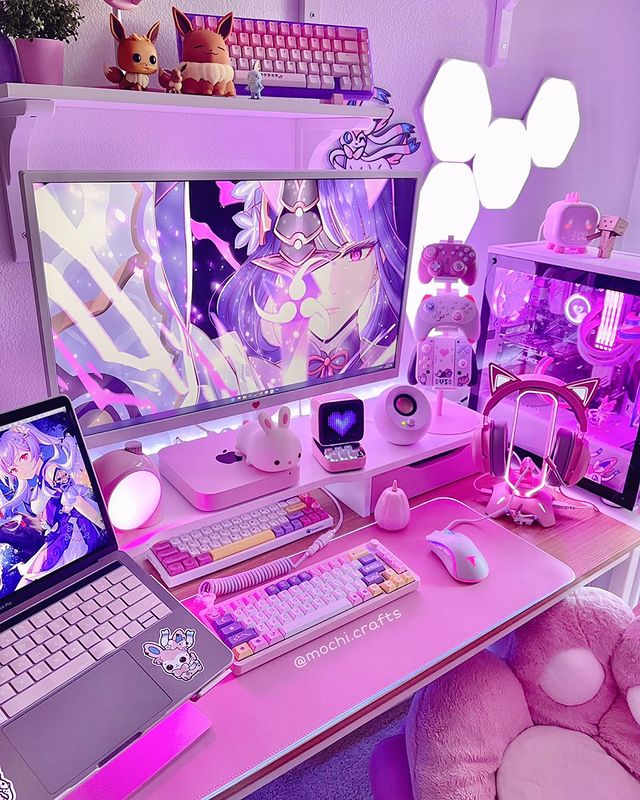
Here’s How to Set Up Discord for Gaming
Discord has become the default communication platform for PC gamers. Free, reliable, packed with features, and available on every platform — if you’re gaming with friends and not using Discord, you’re making things harder than they need to be.
This guide covers everything from creating your first server to setting up voice channels, adding bots, and using the in-game overlay. Whether you’re completely new to it or just want to get more out of it, here’s how to do it properly.
Getting Started — Download and Account Setup
Discord is free to download at discord.com. It runs on Windows, Mac, Linux, iOS, and Android. There’s also a browser version, but the desktop app is the one to use for gaming — it integrates with your games and runs in the background without issues.
Creating an account takes two minutes. You’ll need a username and email address. Once you’re in, spend a moment on your profile — add a profile picture and set your status. These small things make you easier to find and identify when your friends are searching for you.
Connecting Your Games
One of Discord’s most useful features is automatic game detection. Go to User Settings → Activity Privacy and make sure “Display current activity as a status message” is turned on. Discord will detect when you’re playing a game and show it on your profile — useful for letting friends know what you’re up to without having to say anything.
Creating Your First Server
A Discord server is your private space — think of it as a clubhouse for you and your friends. You can have multiple servers for different groups. To create one, click the + button in the left sidebar and select Create My Own.
Give your server a name and icon. Keep it simple — your gaming group name, a game you all play, whatever makes sense. You can change both at any time.
Inviting Friends
Once your server is created, invite friends via the invite link. Right-click any text channel and select Invite People. You’ll get a shareable link — send it via WhatsApp, text, email, whatever. The link expires after 7 days by default; you can set it to never expire in the invite settings if you want a permanent link to share.
Setting Up Channels
Channels are the rooms within your server. There are two types: text channels for messages and links, and voice channels for talking. A good basic setup for a gaming server covers both.
Text Channels Worth Having
#general — the main chat, for everything. Discord creates this by default.
#gaming — for game-specific chat, screenshots, clips, and recommendations. Keeps general cleaner.
#lfg — looking for game. Useful if your group plays across multiple titles and people want to find others for a session.
#links — for sharing deals, videos, articles. Keeps them out of general chat where they’d get buried.
Voice Channels Worth Having
General Voice — the default hangout channel. Anyone can jump in.
Game Night — a second voice channel for when part of the group is playing something different. Means two conversations can happen simultaneously without stepping on each other.
AFK — Discord can automatically move idle members here after a set time. Keeps your active channels clean.
Creating Channels
Click the + next to “Text Channels” or “Voice Channels” in the sidebar. Name it, set permissions if needed, and it’s done. You can drag channels to reorder them and create category headers to group them — useful if your server grows.
Voice Settings — Getting the Audio Right
Bad audio is the fastest way to ruin a gaming session. Getting this right once means you never have to think about it again.
Go to User Settings → Voice & Video. The key settings:
Input Device — select your microphone. If you have a headset, make sure it’s selected here rather than your PC’s built-in mic.
Input Mode — choose between Voice Activity (always on, picks up when you speak) and Push to Talk (you hold a key to transmit). Push to Talk is cleaner for gaming — no background noise bleeds through — but Voice Activity is more convenient. Try both and see what works for you.
Input Sensitivity — if you’re on Voice Activity, this controls how loud you need to be before Discord picks you up. Drag the slider until background noise doesn’t trigger it but your voice does. Discord has a test mode to help you calibrate.
Noise Suppression — turn this on. Discord’s built-in noise suppression (powered by Krisp) removes keyboard noise, fan hum, and background sound. It works well and costs nothing.
Echo Cancellation — keep this on unless you have a specific reason to turn it off.
Adding Bots
Bots extend what your server can do — music playback, moderation, game stats, scheduled events, and much more. Adding one takes about a minute.
How to Add a Bot
Visit a bot directory like top.gg or discord.com/application-directory. Find the bot you want, click Invite or Add to Server, and select your server from the dropdown. You’ll need to be the server owner or have administrator permissions.
Bots Worth Adding
MEE6 — the most popular all-purpose bot. Handles moderation (auto-deleting spam, muting users), welcome messages, levelling systems, and scheduled posts. Good for keeping a larger server tidy.
Carl-bot — more powerful than MEE6 for moderation and reaction roles. Reaction roles let members self-assign roles by clicking an emoji — useful for letting people tag themselves by the games they play.
Hydra or Jockie Music — music bots that play audio in voice channels from YouTube, Spotify, and other sources. Good for background music during gaming sessions.
StatBot — tracks server statistics, member activity, and message counts. More useful for larger communities than small friend groups.
Using the In-Game Overlay
The Discord overlay puts a small interface on top of your game — you can see who’s talking in your voice channel and send text messages without alt-tabbing. Particularly useful in fast-paced multiplayer games.
Enabling the Overlay
Go to User Settings → Game Overlay and turn on Enable in-game overlay. You can also set a keybind to toggle it on and off during gameplay.
When you’re in a game, press the overlay keybind (default is Left Shift + ` ) to bring it up. You can drag the voice chat display to wherever it’s least intrusive on your screen — top corner is usually best.
Note: the overlay doesn’t work in every game, particularly ones that run in exclusive fullscreen mode. Borderless windowed mode usually fixes this if you want the overlay available.
A Few More Settings Worth Knowing
Streamer Mode — hides personal information like your email and connected accounts when you’re streaming or screen sharing. Toggle it in User Settings or set it to activate automatically when streaming software is detected.
Do Not Disturb — sets your status to DND and mutes all notifications. Useful when you need to focus. Click your profile picture in the bottom left to change status.
Keybinds — User Settings → Keybinds lets you set shortcuts for push-to-talk, mute, deafen, and overlay toggle. Worth setting up if you use push-to-talk.
Server Notifications — right-click any server icon and set notification preferences. For active servers, “Only @mentions” stops your phone buzzing every time someone posts a meme at 2am.
Got your comms sorted? Check out our Hardware & Peripherals guides for headset recommendations to go with it, or our Guides section for more setup help.